Overview
This guide describes using templates inside the Adam theme for various purposes. Adam was created to showcase product in stunning large images, as well as showing information creatively. Here are what you can look forward to using.
1. Default product page
You may highlight the characteristics and advantages of each of your specific items on the Product page. Use the theme editor's blocks, theme options, and extra sections to modify the product page template.
Product detail block
Product detail block is the core e-commerce elements that control how your products are displayed and purchased throughout your store. These blocks work across product pages, collection listings, search results, and promotional sections, providing consistent product presentation with flexible customization options for different contexts and user experiences.
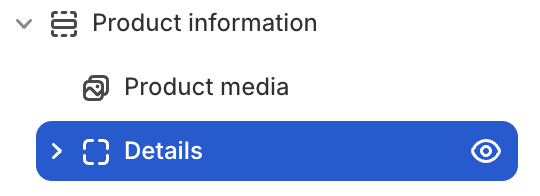
Product detail's blocks inside
| Block name | Description |
|---|---|
| Product title | Show product title. |
| Product price | Show product price. |
| Variant picker | Show variant options. |
| Quantity | Show product/variant quantity. |
| Inventory status | Show inventory status. |
| Countdown timer | Show countdown timer of sale events. |
| Collapse | Display product information in collapsible tabs. |
| Buy buttons | The Add to Cart and Checkout action buttons. |
| Volume discount | Feature button that helps purchase multiple products at once along with discounts. |
| Product recommendations | Show related/complementary products. |
Product media block
Product Media Block controls how all product media is displayed on the product detail page. It includes modern features such as gallery, variant image grouping, only show selected variant images, and image zoom.
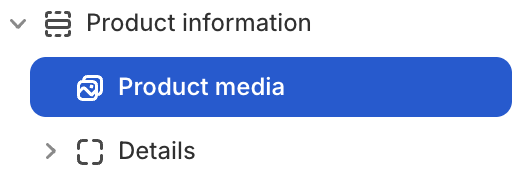
Product media block settings
| Setting name | Description |
|---|---|
| Column span | Adjust column span number: from 1 to 12. |
| Row span | Adjust row span number: from 1 to 12. |
| Gallery type | Choose display style of media gallery: Grid, Carousel, Scroll |
| First image at sidebar | Show first image at sidebar. |
| Aspect ratio | Aspect ratio of images: 3:4, 1:1, Custom. |
| Hide other variants’ media after selecting a variant | Hide other variants’ media after selecting a variant. |
| Only show selected variant image | Only show selected variant image (variant image grouping). |
| Enable image zoom | Enable image zoom when hover on image. |
2. Pages - Contact
Contact template is where customers can send information to your store. You can also add this section into other page that you want to collect information.
The section is available only on the Pages > Contact page, and the Pages > Default page.
3. About
The About page template lets you show the people behind your service business. You can write short description about yourself and add images to show what you have to offer to the customers.
4. 404 page
To set up a 404 page:
Go to Customize theme. At the top of the page, use the dropdown to select Others > 404 page.
5. Gift card page
To set up a gift card page:
Go to Customize theme. At the top of the page, use the dropdown to select Gift card.