Cart guide
This guide describes how to use Cart mini and Cart page.
How to setup Cart mini
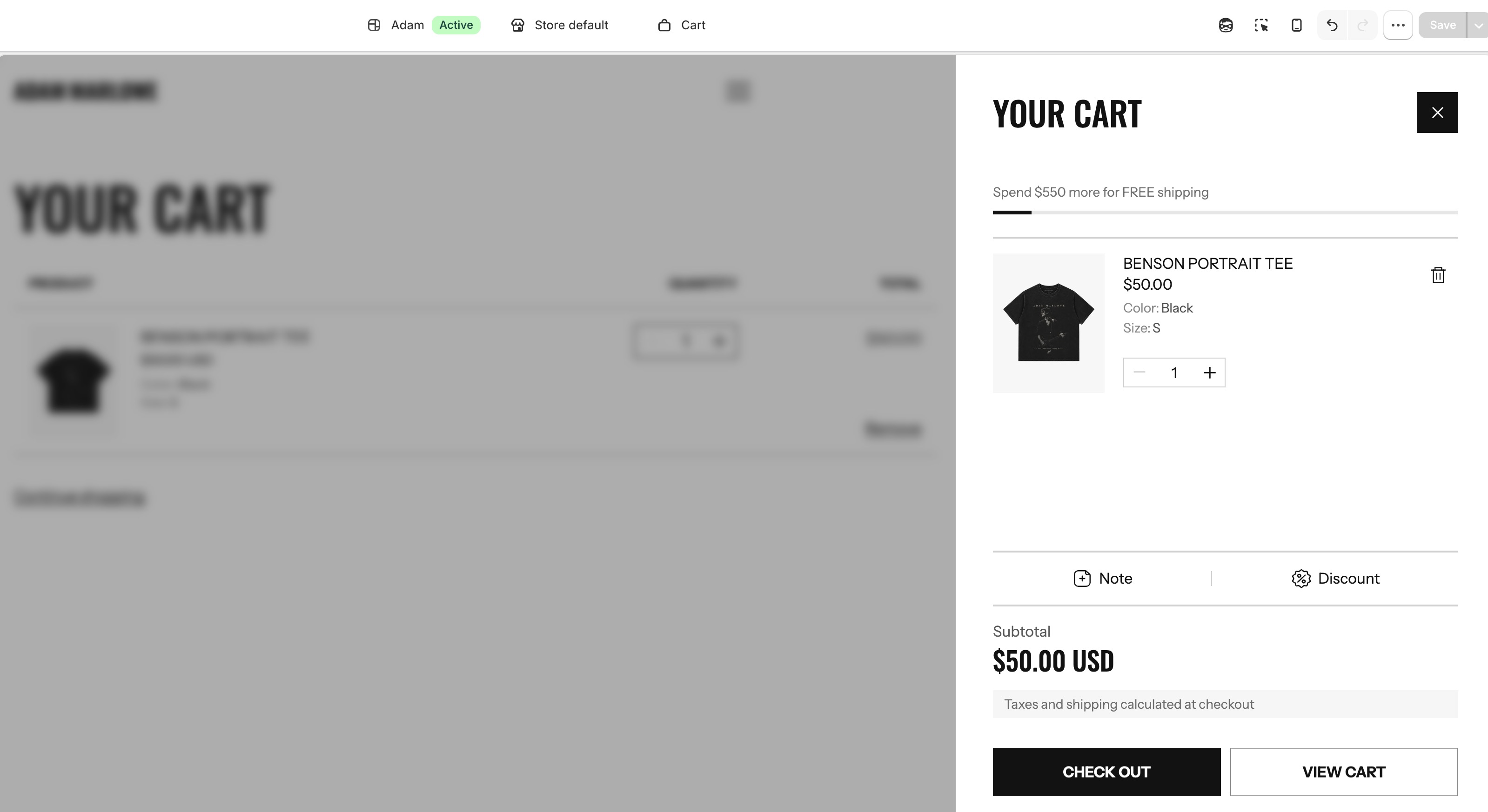
Cart mini is an essential section where customers gather their selected products before proceeding to checkout. It enables customers to seamlessly add, modify, and remove items while offering a clear overview of any discounts and subtotal amounts for their intended purchases. In Adam, the cart is equipped with features designed to enhance conversions and elevate average order value.
The main cart settings are configured under Theme settings > Cart. View Cart settings. To customize your cart experience, follow these steps:
- Open the Theme editor.
- Navigate to Theme settings > CART.
- Use the "Cart type" setting to select "Drawer", "Page", or "Popup" as the default cart experience for customers.
- Decide to show Cart note or Cart discount
- You can also enable free shipping product suggestions to show in the cart
How to set up the cart page
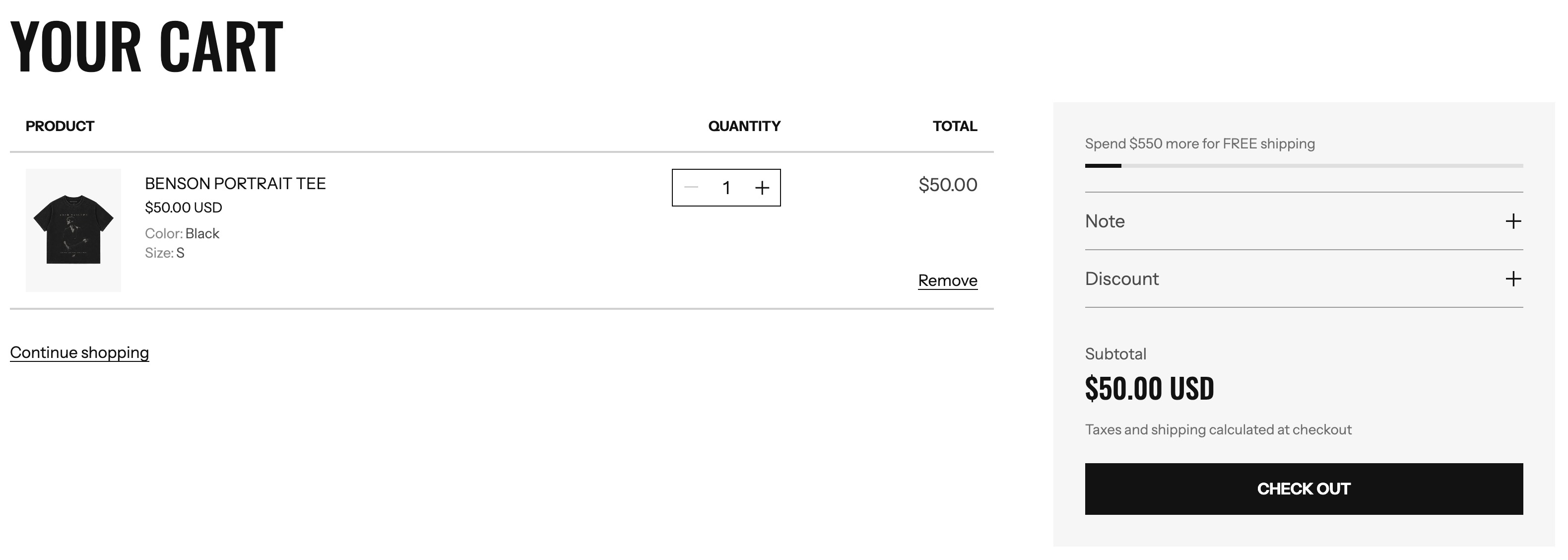
The cart page serves as a dedicated space for customers to review and manage the items they've added to their shopping cart before proceeding to checkout. Similar to other pages of the store, this page can be configured and customized using the wide range of sections available in Adam. This flexibility allows you to tailor the cart page to meet the specific needs and preferences of your customers.
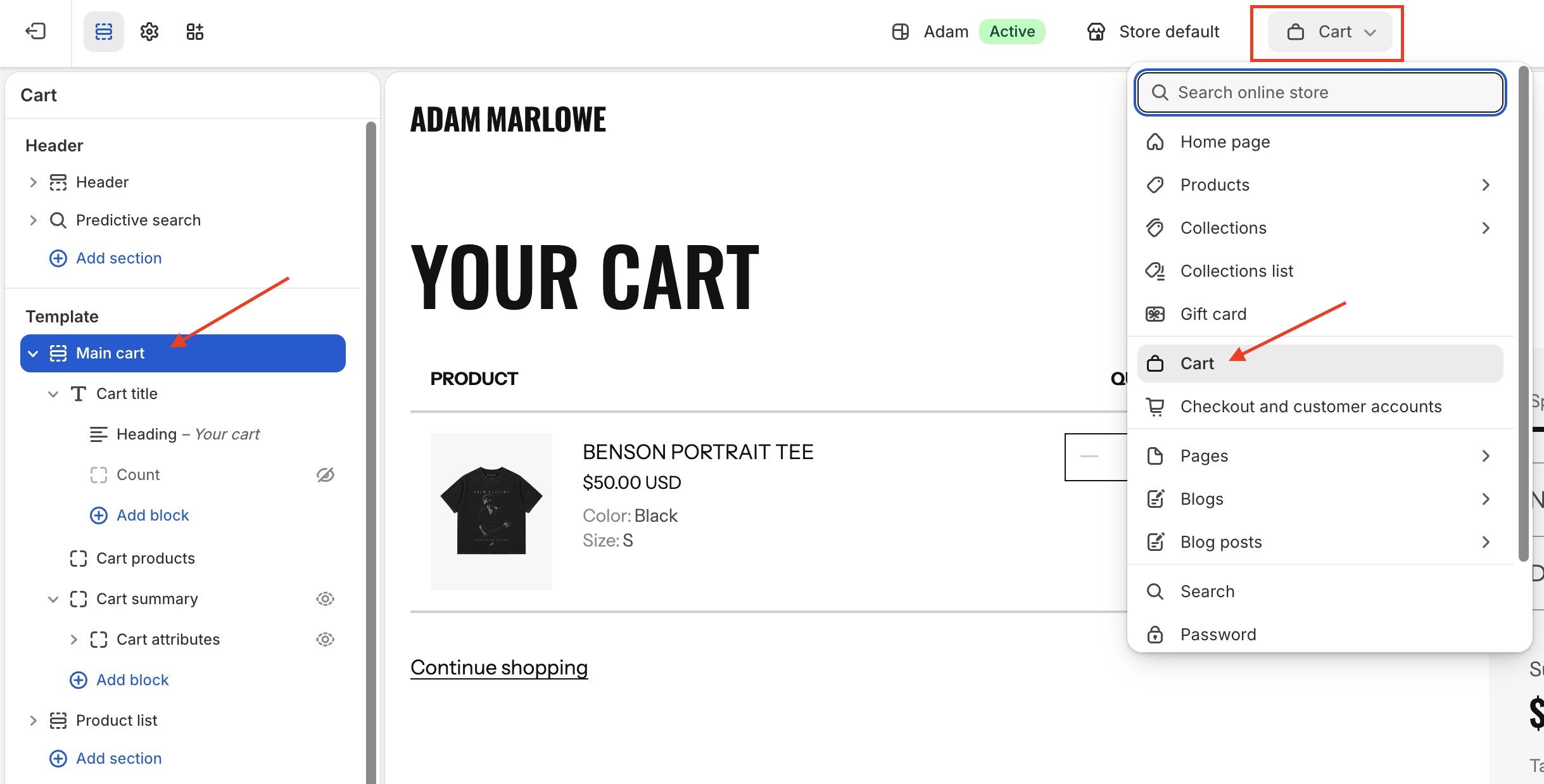
To edit the Cart section:
- Open the
Theme editor, and selectCartfrom the dropdown at the top. - Click the Cart section on the left hand side.
How to set up the free shipping bar
Free shipping bar plays a crucial role in boosting the average order value (AOV) for online stores. By encouraging customers to add more items to their cart to reach the minimum threshold for free shipping, these notifications incentivize larger purchases. As customers strive to avoid shipping fees, they are motivated to increase their cart value, ultimately resulting in a higher AOV for the store.
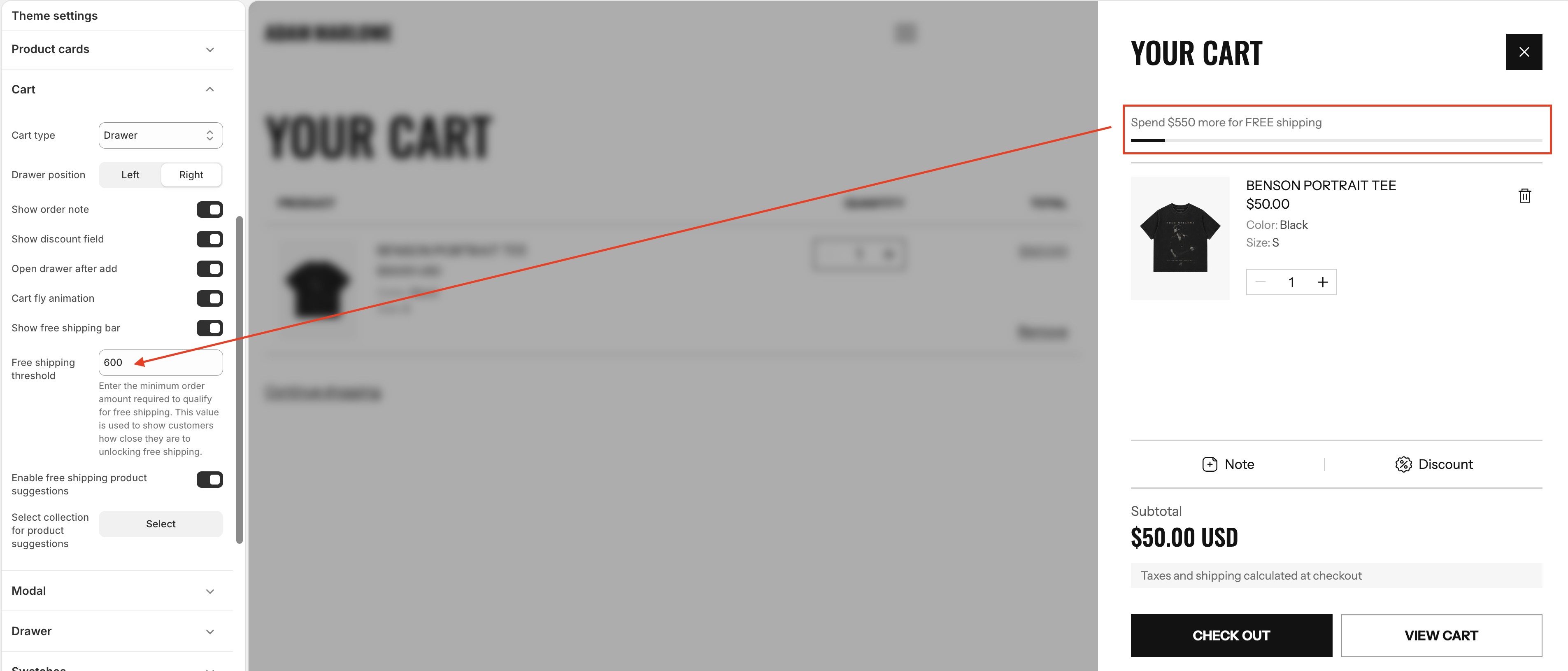
To configure the free shipping notice in the Theme editor, follow these steps:
- Go to
Theme settings > Cart. - Scroll to the "Show free shipping message" setting.
- Enable the "Show free shipping message" setting.
- In the "Free shipping threshold" input field, enter the minimum order amount(s) required to qualify for free shipping.
Don't enter the currency, only the number. For example, if you want to set the Free shipping amount to $100, simply input: "100".
How to add cart attributes
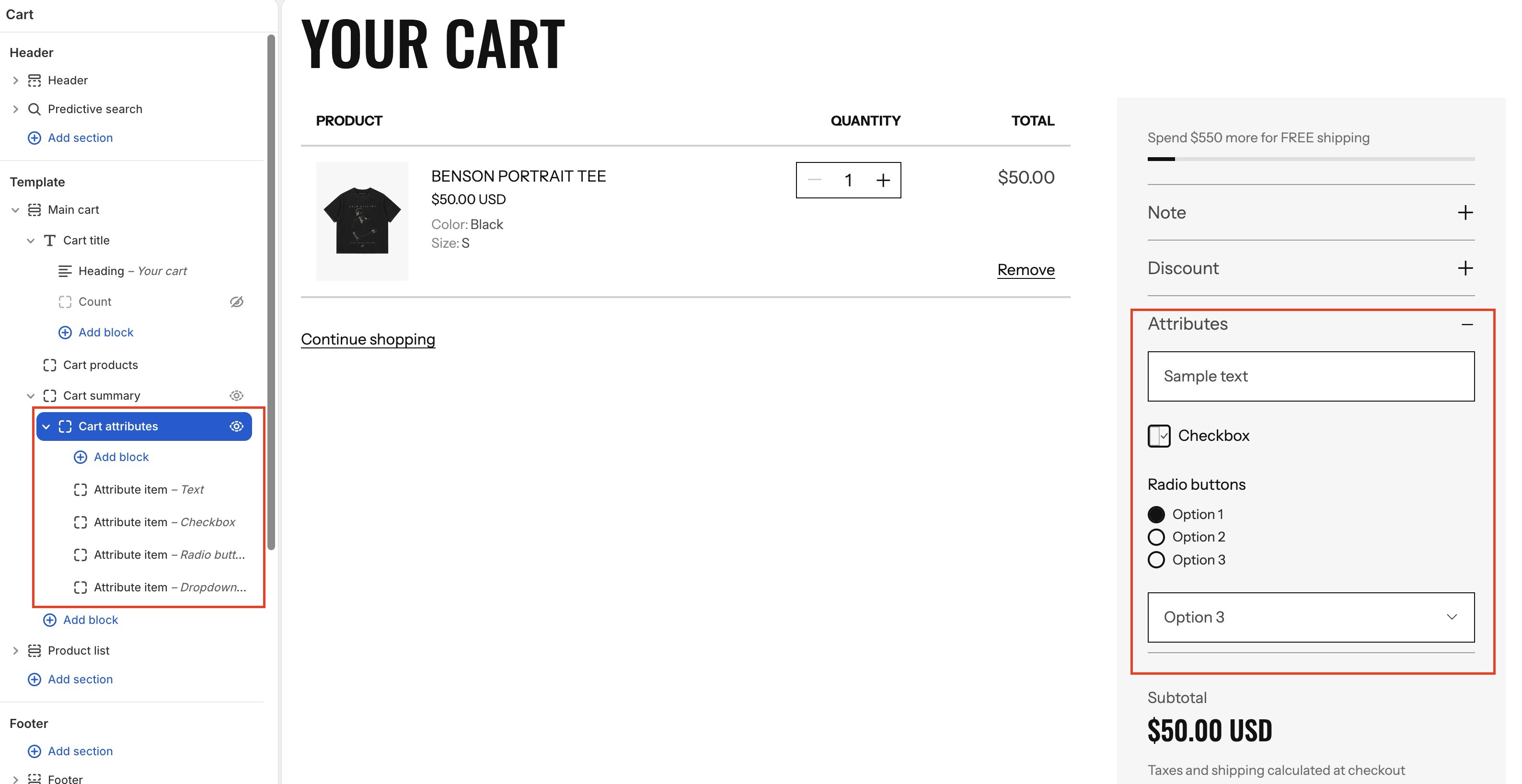
Cart attributes are additional information for a single order that is displayed on the checkout page.
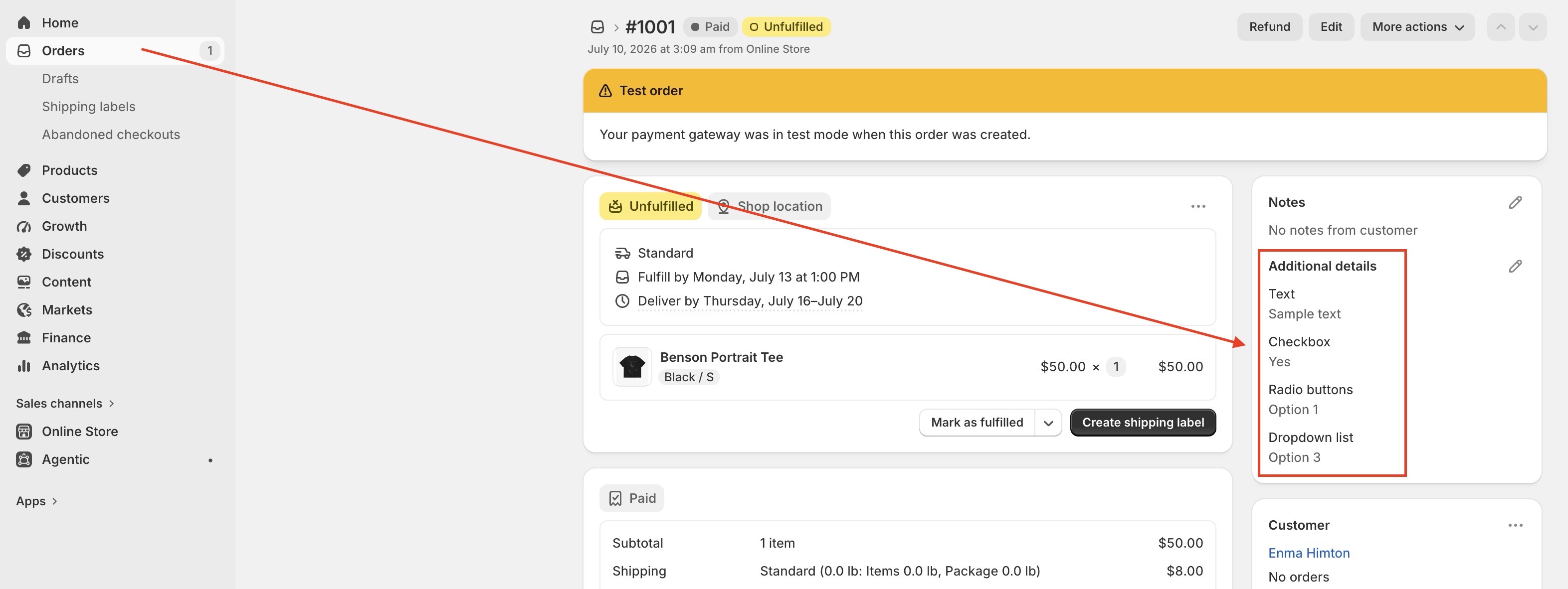
After checkout, the customer additional information will be displayed in Shopify's admin page > Orders > Additional details
- Open the
Theme editor, and selectCartfrom the dropdown at the top. - Click the Cart section on the left hand side.
- Go to the Cart page > Main cart > Cart summary > Turn on Enable cart attribute
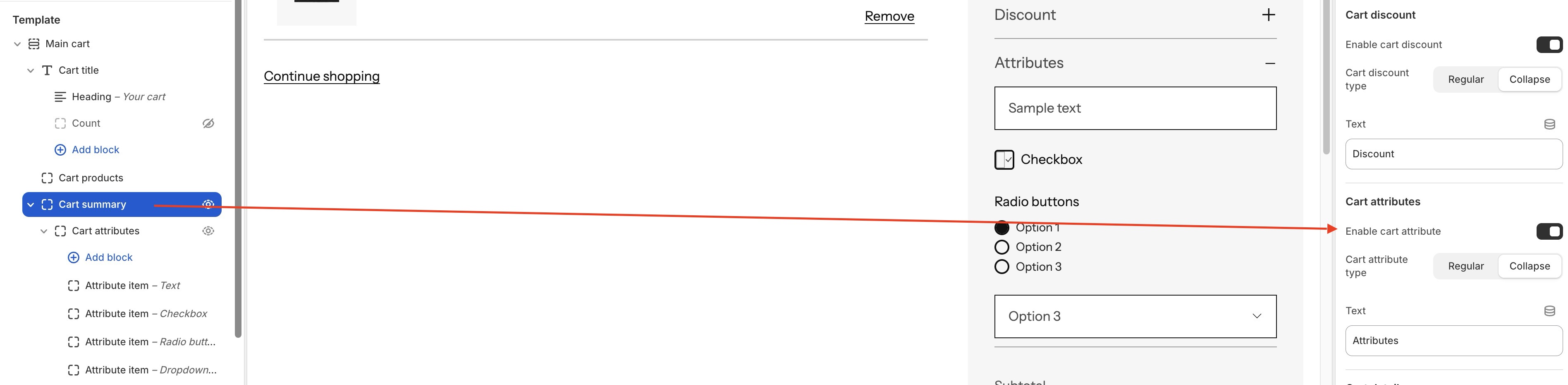
- Go to the Cart page > Main cart > Cart summary > add block Cart attributes > add block Attribute item
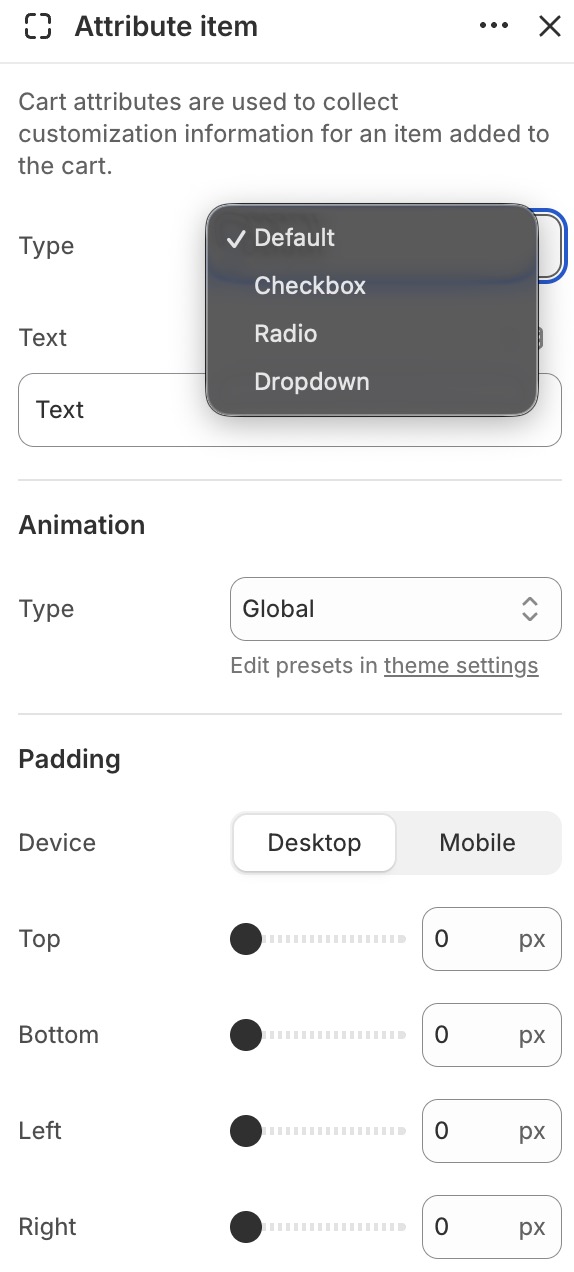
- Configure block Attribute item
- There are 4 types of input you can use: Text input, Checkbox, Radio button, and Dropdown select.